
Rules & automation
Rules in the box content that save the buyer work: shrink text, remove empty lines, generate data automatically.
-
 Video 1:30 min
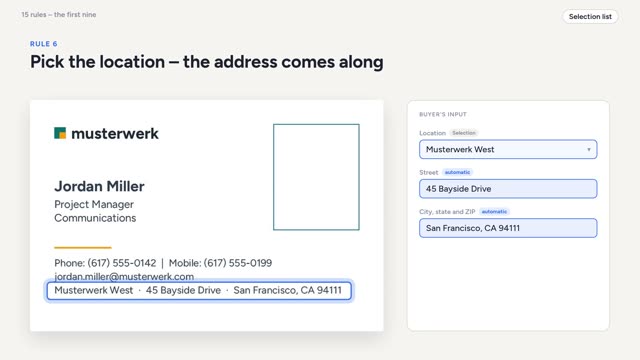
Overview: what rules in a print template can do
One business card and nine rules that save the buyer work. The overview of the season.
-
 Video 1:19 min
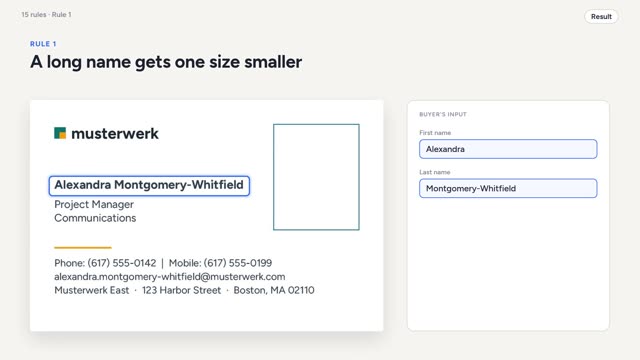
Percentage rule: smaller font for long names
If the name doesn't fit on its line, the template automatically switches to the smaller font.
-
 Video 1:18 min
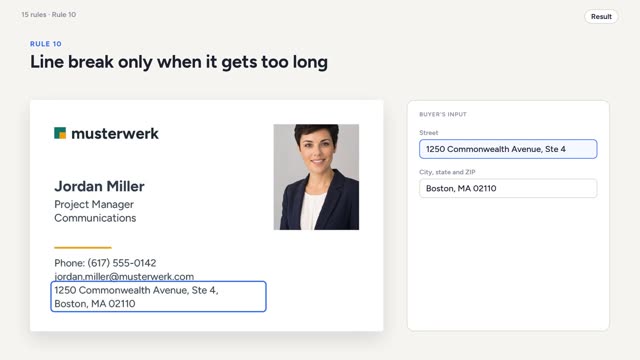
Percentage rule: line break only for long text
Short entries stay on one line, long ones break cleanly.
-
 Video 1:30 min
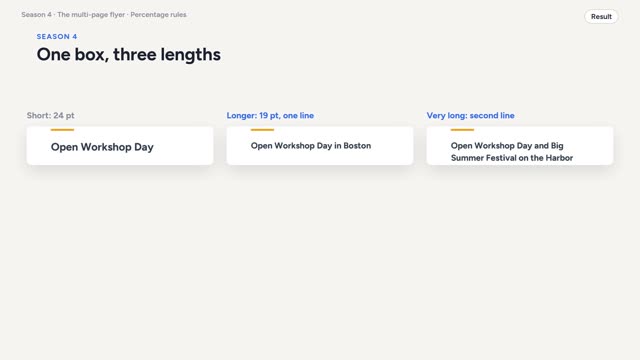
Percentage rules and line breaks in body text
Texts that grow with the content and break cleanly.
-
 Video 1:06 min
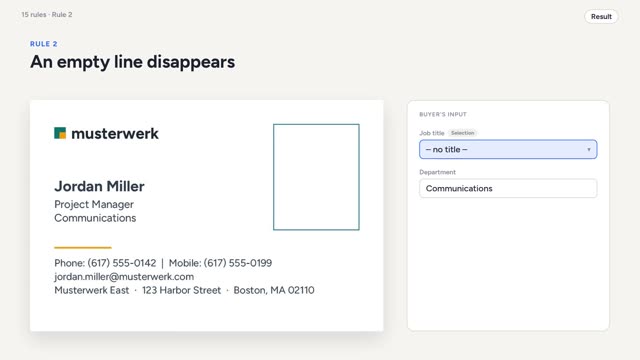
Removing empty lines automatically
If a field stays empty, there's no gap on the card: a rule after the field deletes the whole line.
-
 Video 1:27 min
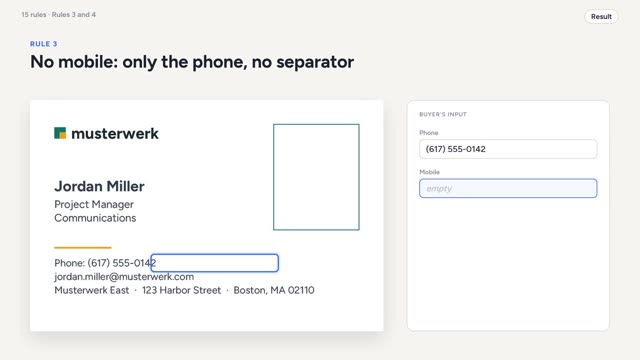
Showing a label only when the field is filled
No mobile number, only the phone; no phone, only the mobile number – with no separator and no empty label.
-
 Video 1:33 min
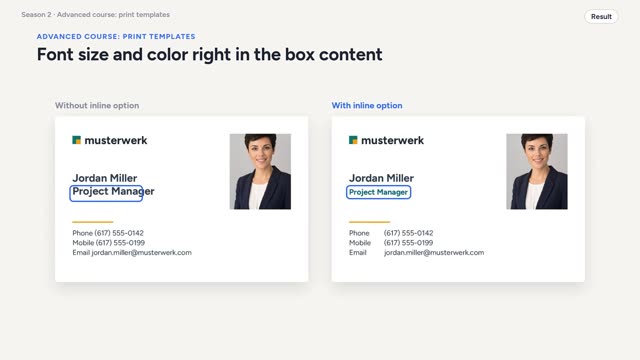
Font size and color right in the box content
Single words bigger, smaller or in color – with inline options in the box content.
-
 Video 1:23 min
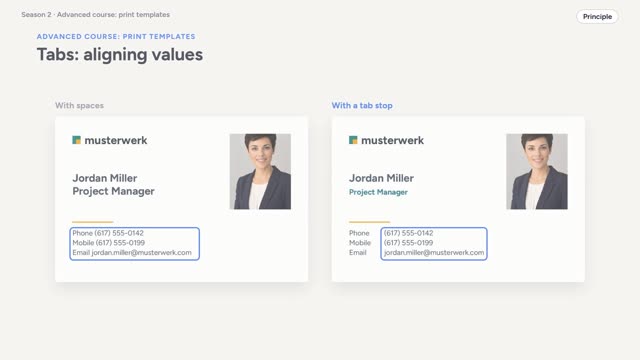
Tabs: aligning values
Phone, fax and email line up neatly – with a tab stop in points.
-
 Video 1:27 min
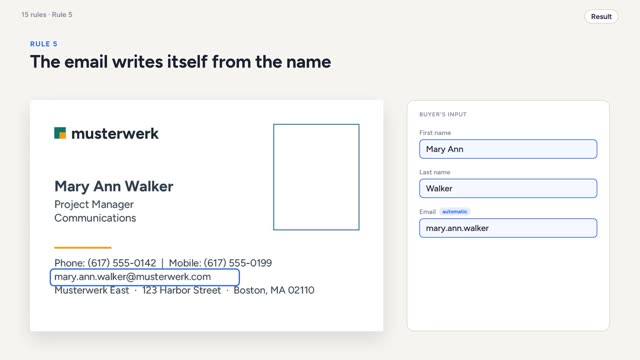
Generating an email address from first and last name
First and last name typed, the address is already there – lowercase, with a dot, umlauts spelled out.
-
 Video 1:26 min
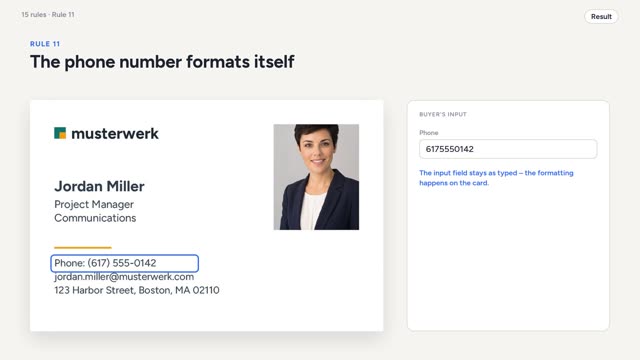
Formatting phone numbers automatically
However it's typed – the number appears in one consistent format on the card.
-
 Video 1:37 min
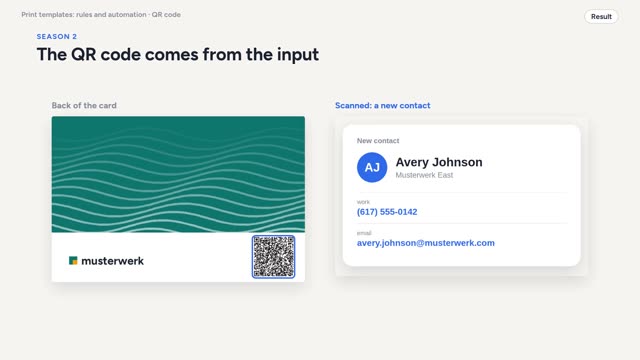
Generating a QR code from input fields
Contact details typed, QR code done – no generator, no upload.
-
 Video 1:28 min
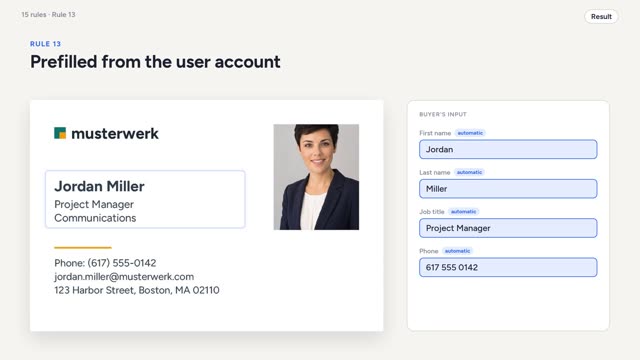
Automatic data assignment from the user account
Name, phone and department are already filled in, because the shop knows the buyer.
-
 Video 1:19 min
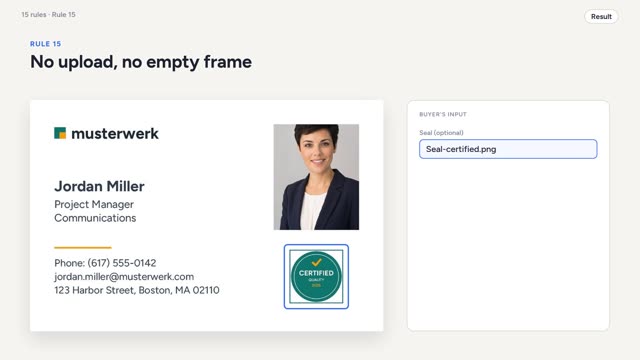
Hiding an empty image box automatically
If the buyer doesn't upload an image, the placeholder disappears from the card.