
New videos
All published videos, newest first. What is being made right now is listed at the bottom.
· 45 videos
-
 Video 1:17 min
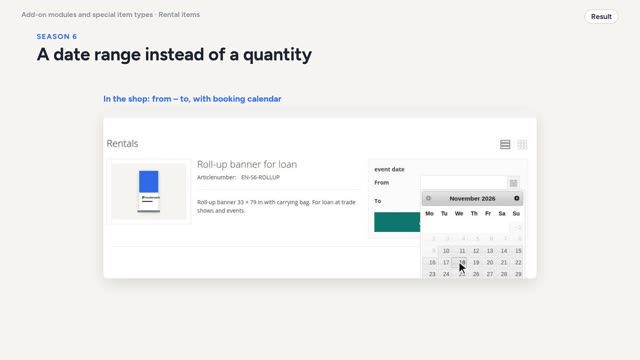
Rental items: lending for a time period
Lend roll-ups and trade show booths instead of selling them.
-
 Video 1:13 min
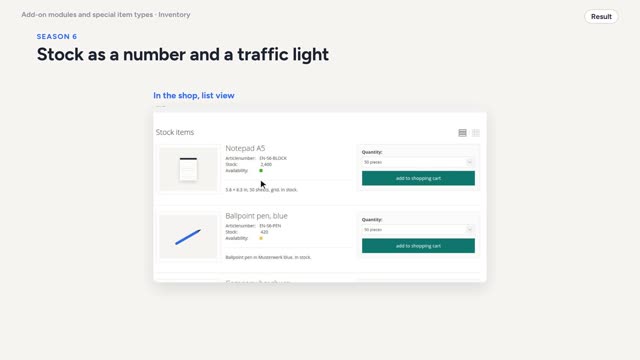
Inventory: stock and traffic light in the shop
Keep track of stock and see when a reprint is due.
-
 Video 1:22 min
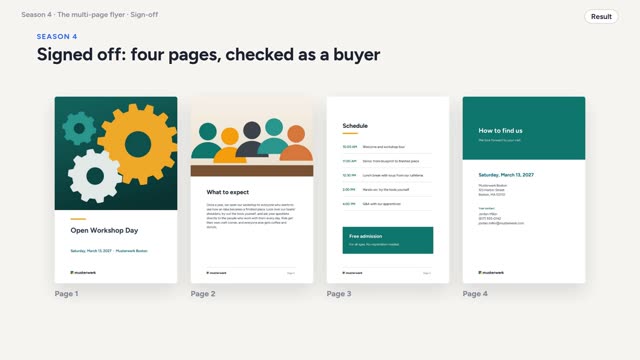
Signing off a print template as a buyer
The final test in the shop – with full and with empty fields.
-
 Video 1:20 min
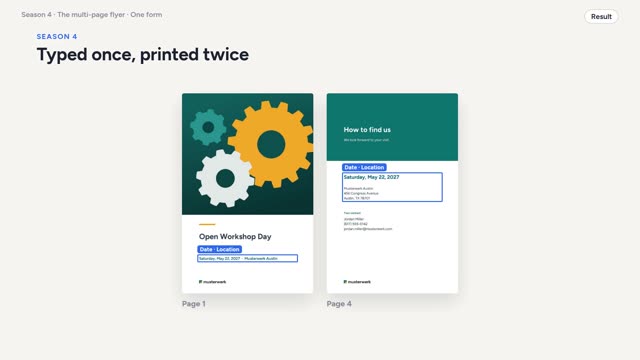
Multi-page template: one input form, preview as a slider
The buyer fills in one form, and all pages fit.
-
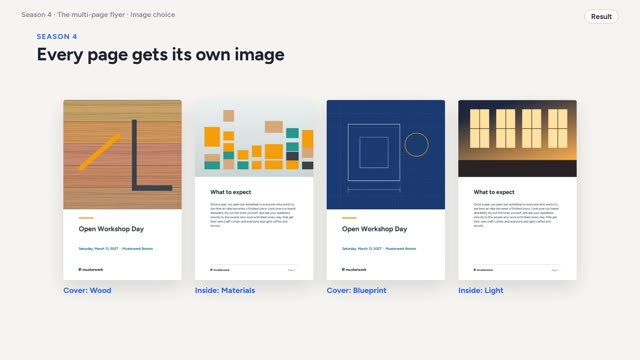 Video 1:28 min
Image selection per page
Each page gets its own choice of motifs.
-
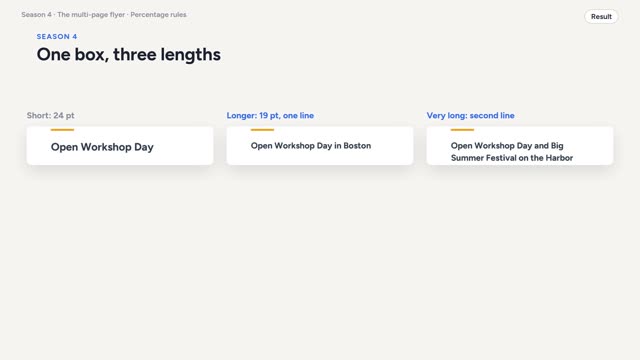 Video 1:30 min
Percentage rules and line breaks in body text
Texts that grow with the content and break cleanly.
-
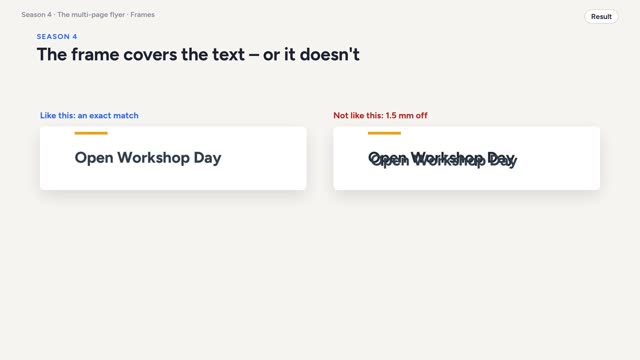 Video 1:22 min
Positioning text frames precisely
Boxes exactly where the texts and images sit in the layout.
-
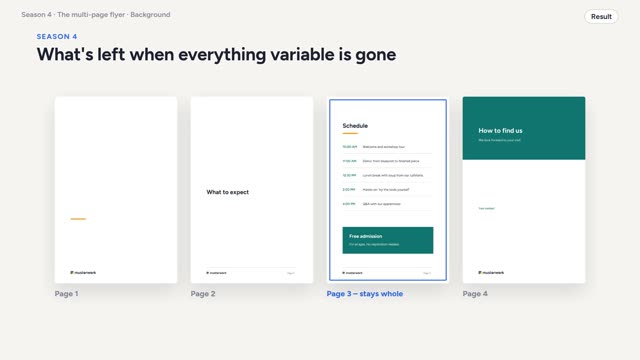 Video 1:25 min
Background PDF for multi-page templates
Everything fixed goes into the background PDF.
-
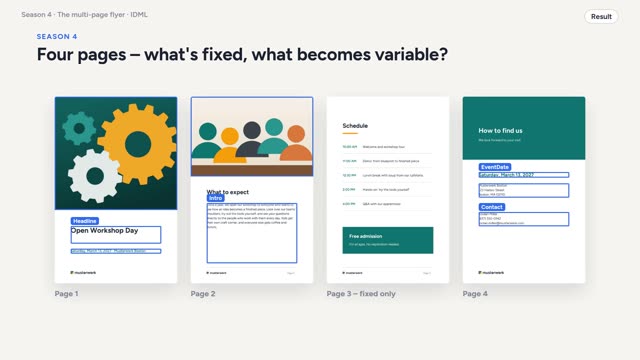 Video 1:48 min
InDesign import: bringing the IDML into a print template
What's in the InDesign file and what of it becomes variable.
-
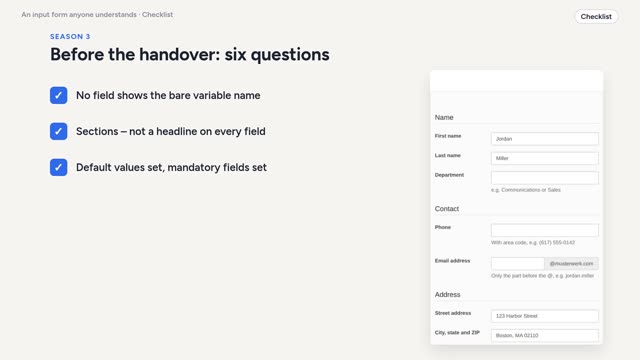 Video 0:50 min
Checklist for the input form
The final test for every form – through the eyes of someone seeing it for the first time.
-
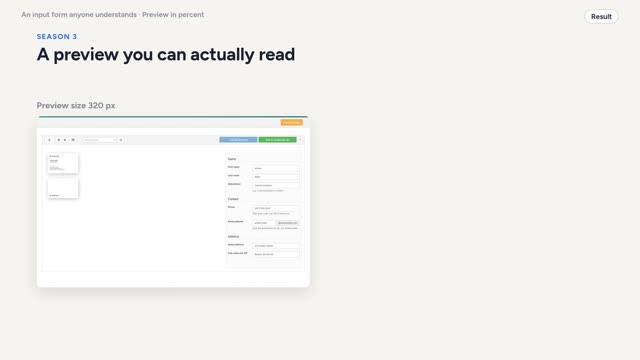 Video 1:07 min
Setting the personalization preview size
Set the preview in percent so the buyer can see what they're changing.
-
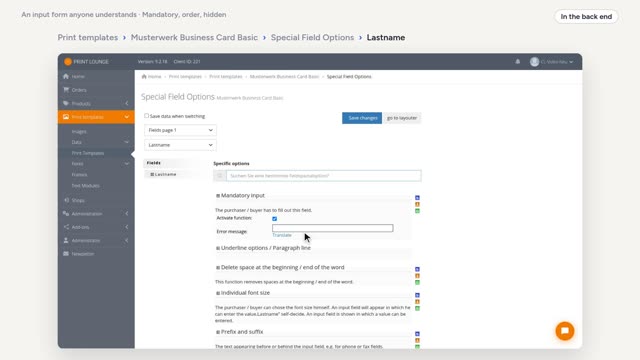 Video 1:43 min
Required fields, field order and hidden fields
What's required, what's optional, what the buyer never sees – and in which order.
-
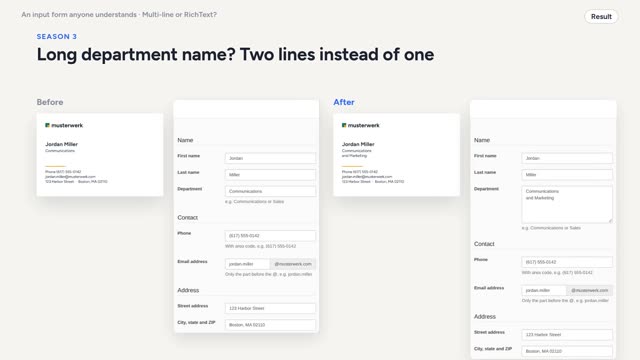 Video 1:28 min
Multi-line fields and RichText
When a simple text field is enough and when the buyer may format text.
-
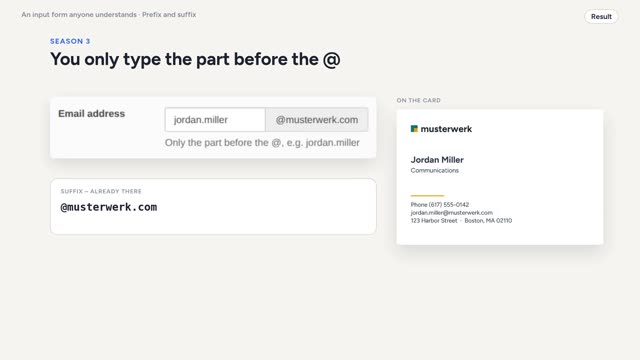 Video 1:21 min
Prefix and suffix on the input field
Fixed parts like the area code or the domain are already there – only the rest is typed.
-
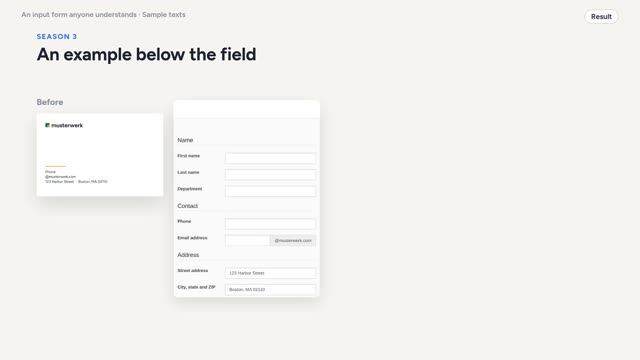 Video 1:03 min
Example texts below the input field
A gray example says more than any manual.
-
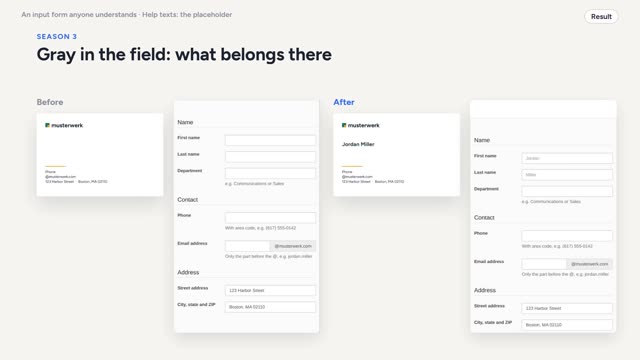 Video 1:31 min
Placeholder, example text and default text
One sentence at the right field saves a call to support.
-
 Video 1:28 min
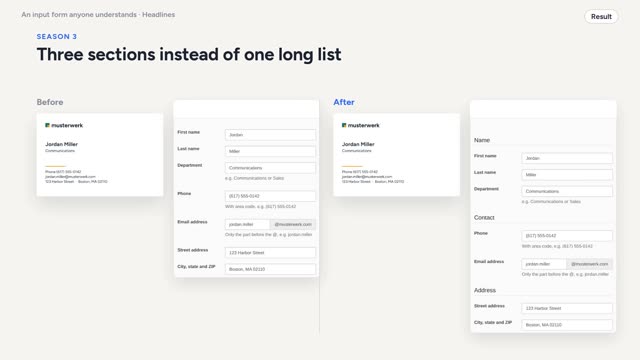
Headings in the input form
A long list of fields becomes clear sections.
-
 Video 2:39 min
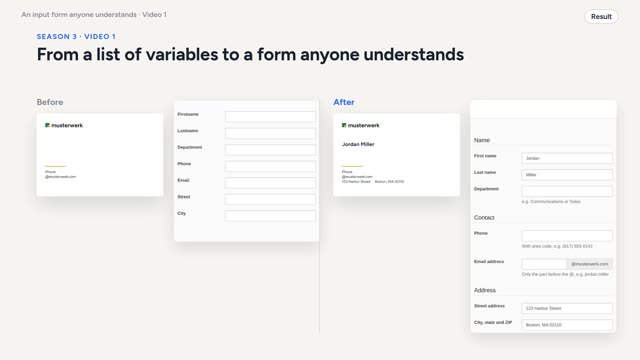
Special Field Options: from a list of variables to an input form
The same business card before and after: with clear field names, sections, example texts, a suffix and default text, the buyer fills in the form without asking.
-
 Video 1:37 min
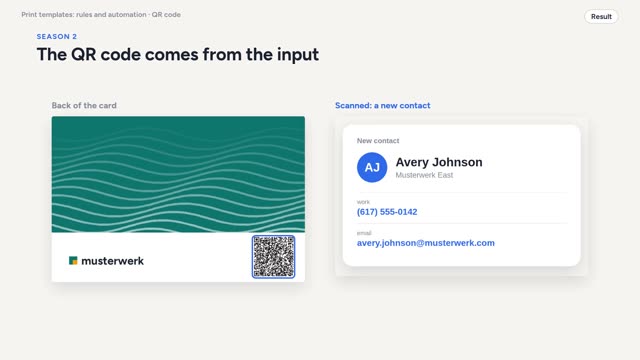
Generating a QR code from input fields
Contact details typed, QR code done – no generator, no upload.
-
 Video 1:19 min
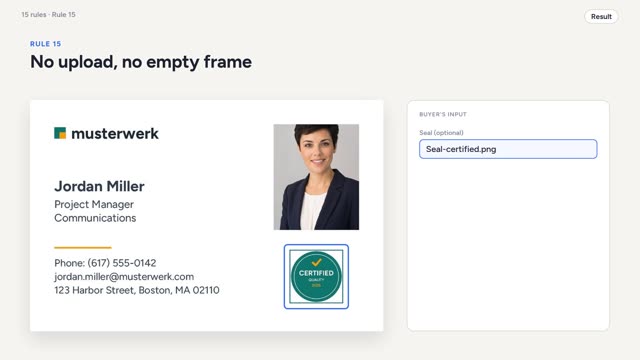
Hiding an empty image box automatically
If the buyer doesn't upload an image, the placeholder disappears from the card.
-
 Video 1:24 min
User-specific images: inserting your own photo automatically
The portrait from the user account appears without a new upload.
-
 Video 1:28 min
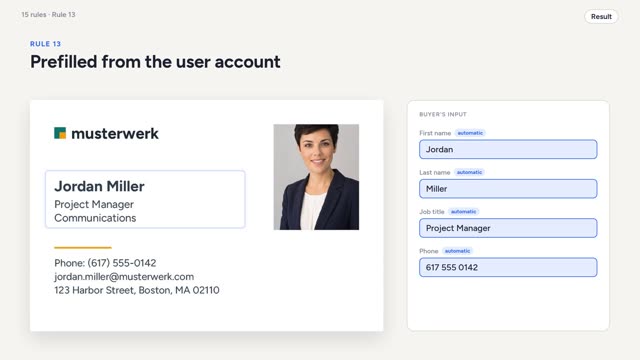
Automatic data assignment from the user account
Name, phone and department are already filled in, because the shop knows the buyer.
-
 Video 1:29 min
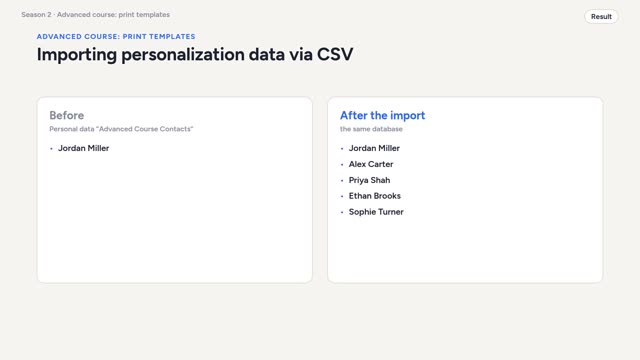
Importing personalization data via CSV
Many records at once: export as a template, add to it, import again – and what the import replaces.
-
 Video 1:26 min
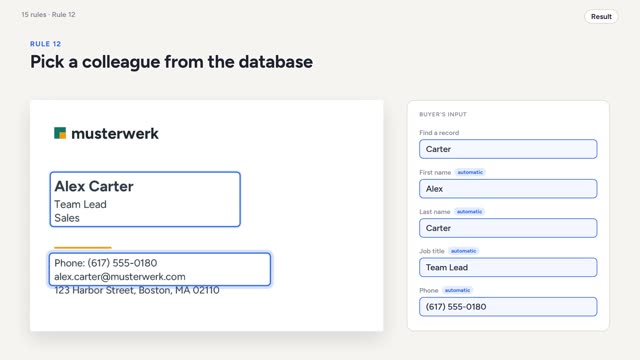
Record search: ordering for colleagues
When someone orders for others, they pick the person – and all details come along.
-
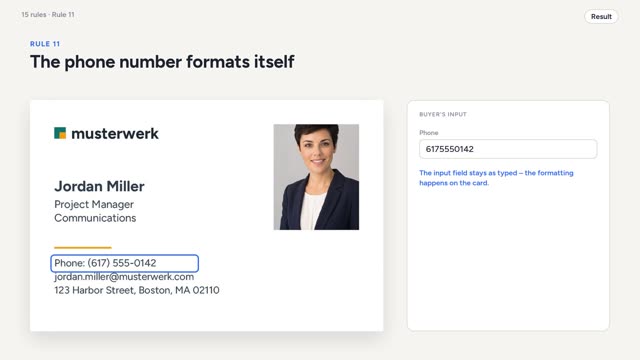 Video 1:26 min
Formatting phone numbers automatically
However it's typed – the number appears in one consistent format on the card.
-
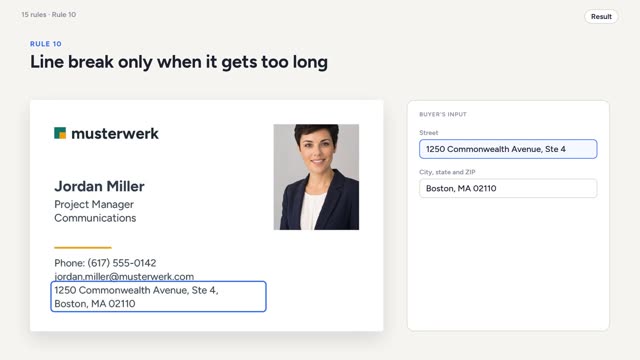 Video 1:18 min
Percentage rule: line break only for long text
Short entries stay on one line, long ones break cleanly.
-
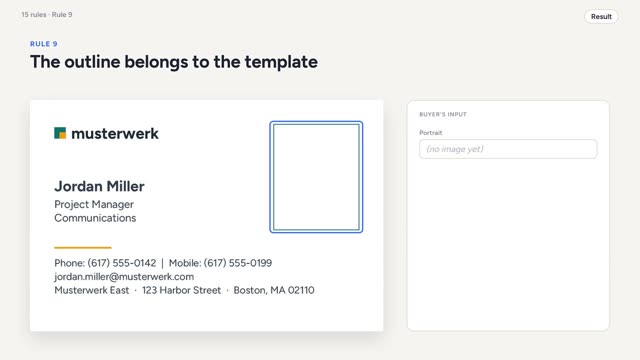 Video 1:14 min
Frames for image boxes
The fine line around the photo is already there before an image is in.
-
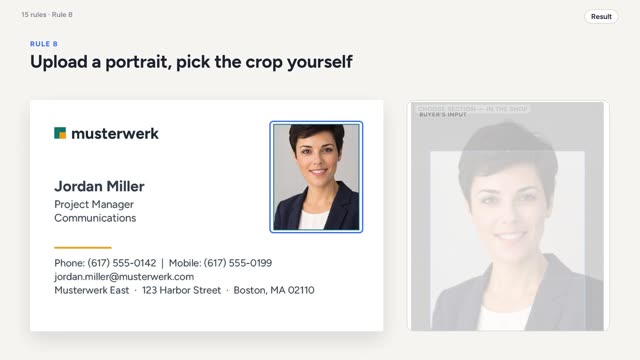 Video 1:27 min
Image upload with cropping (crop tool)
The buyer uploads their photo and picks the crop in the format of the image frame.
-
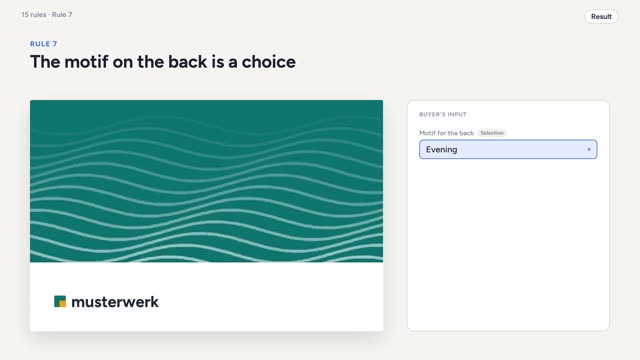 Video 1:22 min
Image selection from an image set
One click, and the back side changes: image selection as a dropdown instead of an upload.
-
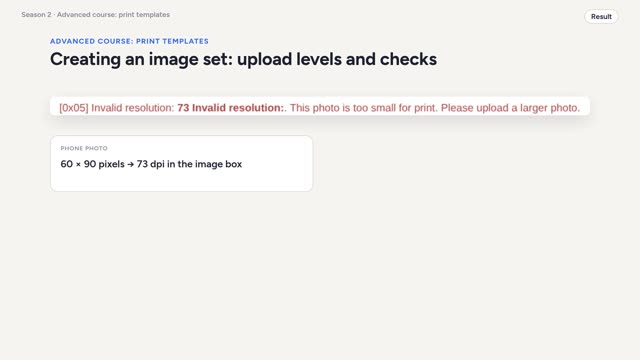 Video 1:31 min
Creating an image set: upload levels and checks
Where images live, what each upload level allows and how the resolution check reacts.
-
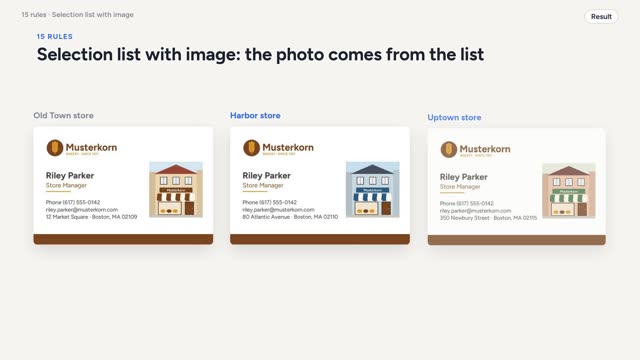 Video 1:35 min
Selection list with image: the photo comes from the list
Whoever picks the location also gets the matching photo – a list that fills an image box.
-
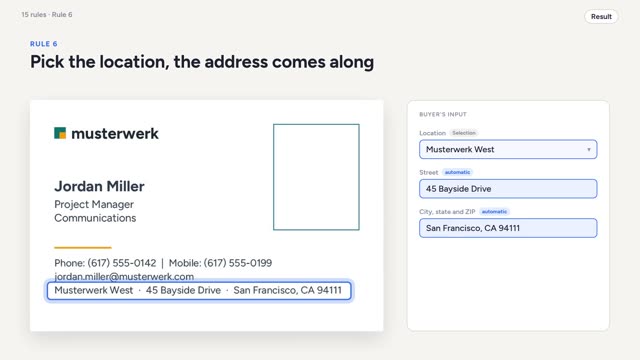 Video 1:24 min
Selection list with extra columns: address from the location
One choice instead of three entries: the buyer picks their location, and street and city are right on the card at once.
-
 Video 1:27 min
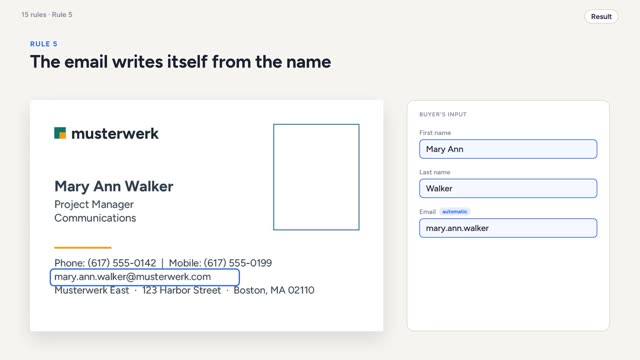
Generating an email address from first and last name
First and last name typed, the address is already there – lowercase, with a dot, umlauts spelled out.
-
 Video 1:23 min
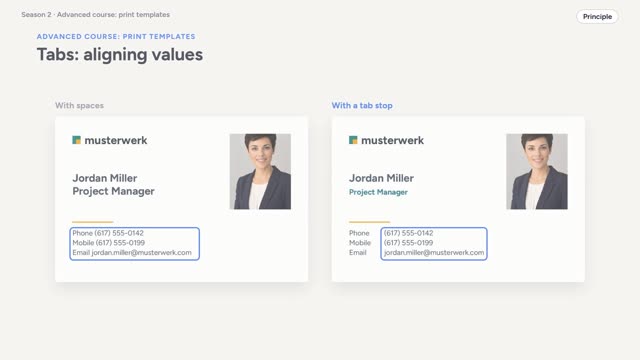
Tabs: aligning values
Phone, fax and email line up neatly – with a tab stop in points.
-
 Video 1:27 min
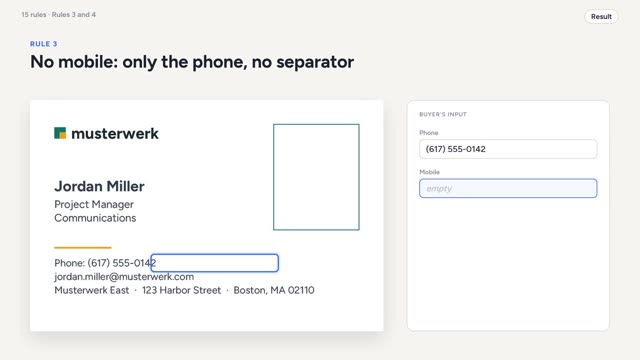
Showing a label only when the field is filled
No mobile number, only the phone; no phone, only the mobile number – with no separator and no empty label.
-
 Video 1:06 min
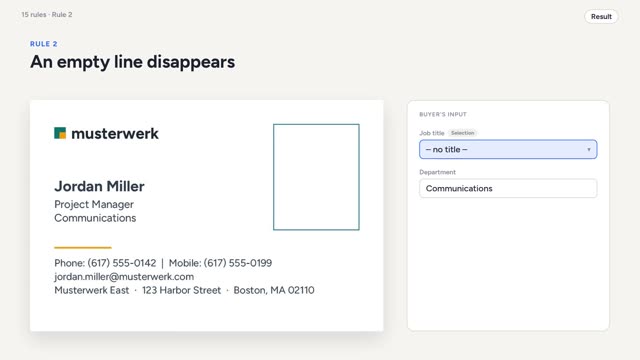
Removing empty lines automatically
If a field stays empty, there's no gap on the card: a rule after the field deletes the whole line.
-
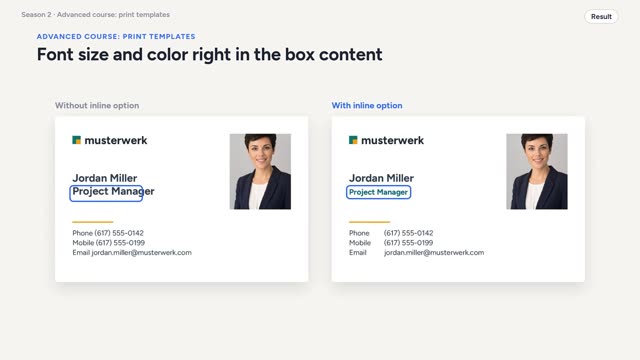 Video 1:33 min
Font size and color right in the box content
Single words bigger, smaller or in color – with inline options in the box content.
-
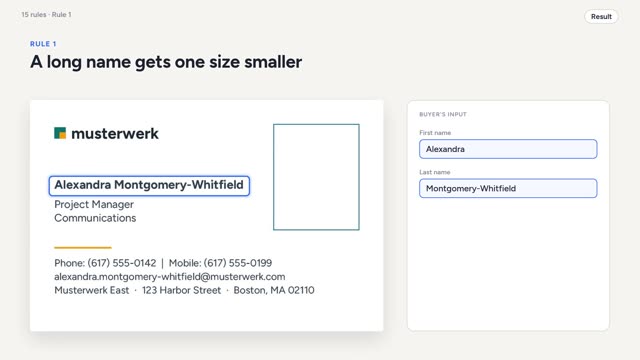 Video 1:19 min
Percentage rule: smaller font for long names
If the name doesn't fit on its line, the template automatically switches to the smaller font.
-
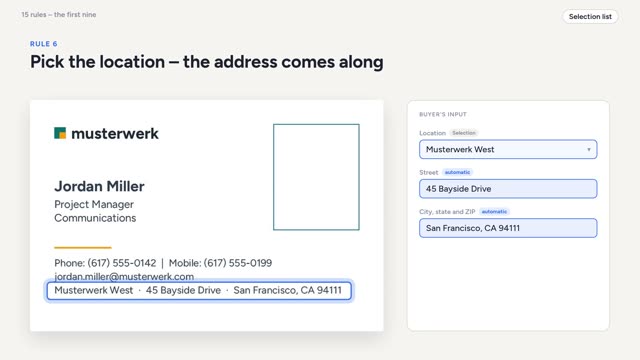 Video 1:30 min
Overview: what rules in a print template can do
One business card and nine rules that save the buyer work. The overview of the season.
-
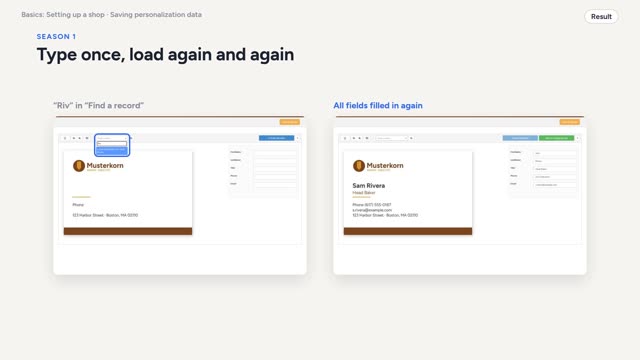 Video 2:04 min
Saving and reloading personalization data
The buyer saves their data and loads it next time with the search – including the switch that hides the search by default.
-
 Video 1:34 min
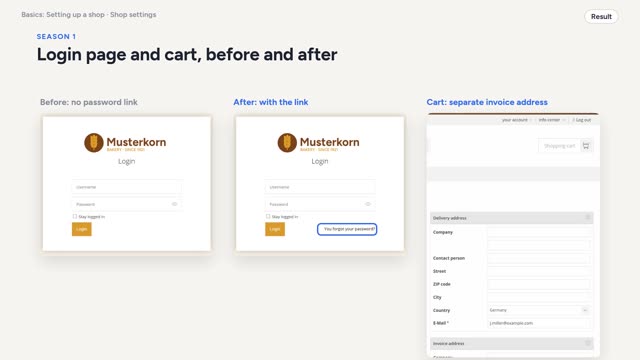
The shop settings everyone needs
Forgotten password, saved shopping cart, shipping and billing address, order history.
-
 Video 1:38 min
Global price scale for several items
Create global price scales once and attach them to several items.
-
 Video 1:37 min
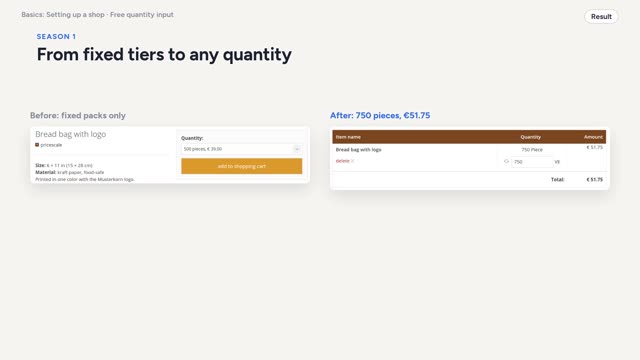
Price scale with free quantity input
The buyer types in the quantity – and why the same price then applies per piece.
-
 Video 1:35 min
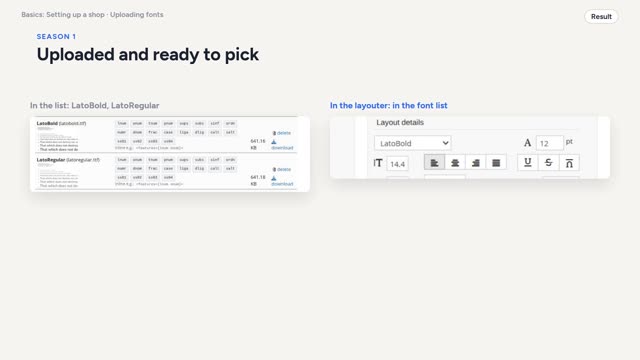
Uploading fonts
Before the print template: fonts into the font manager, and how you can tell they are ready.
-
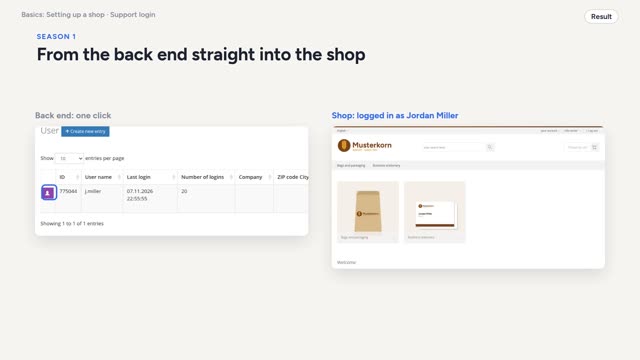 Video 1:09 min
Support login: seeing the shop as a buyer
One click in the back end, and you see the shop exactly as a specific buyer sees it.
· 18 videos
-
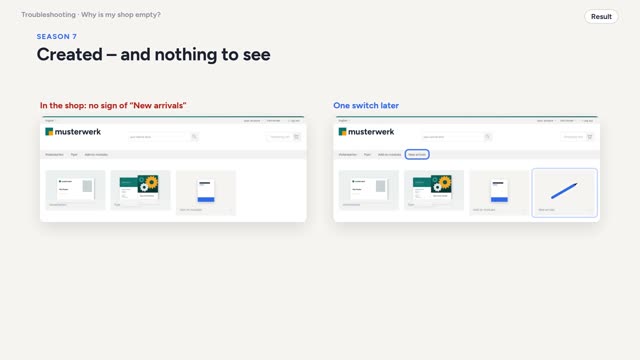 Video 1:35 min
Troubleshooting: item doesn't appear in the shop
Item created, but nothing to see – the usual causes.
-
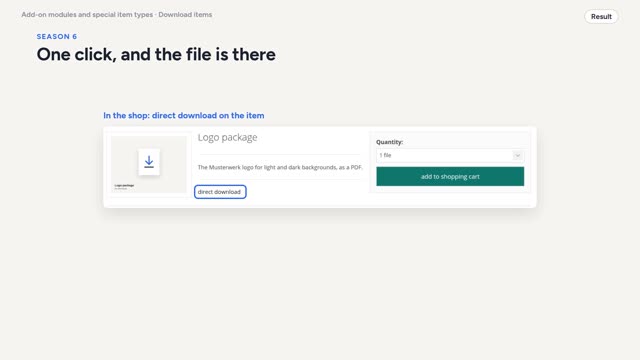 Video 1:05 min
Creating download items
Files instead of goods: templates and documents to download.
-
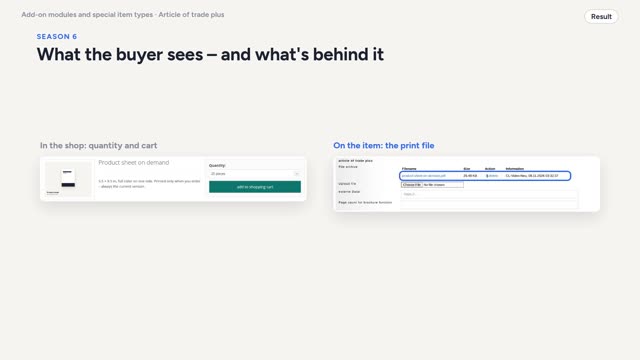 Video 1:27 min
Article of trade plus: hidden print file on the item
An article of trade with a hidden print file that goes to the print shop with the order.
-
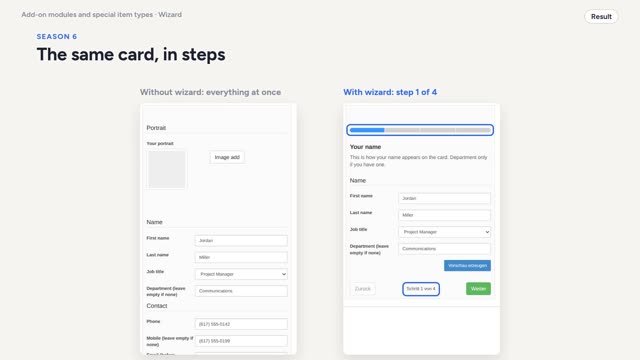 Video 1:43 min
Wizard: personalization in steps
The add-on that guides buyers step by step.
-
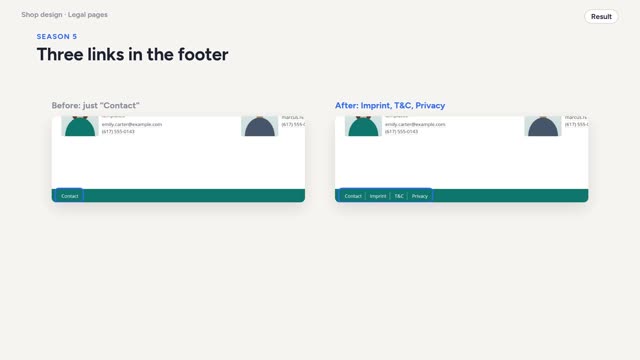 Video 1:39 min
Setting up legal notice, privacy policy and terms
Legal notice, privacy policy, terms and conditions: where they belong.
-
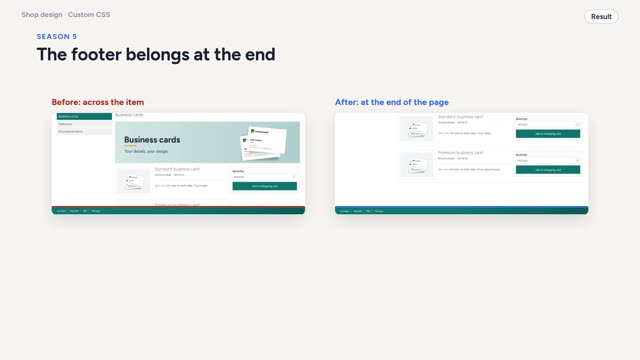 Video 1:09 min
Your own CSS in the shop
Small tweaks with a big effect – without taking the shop apart.
-
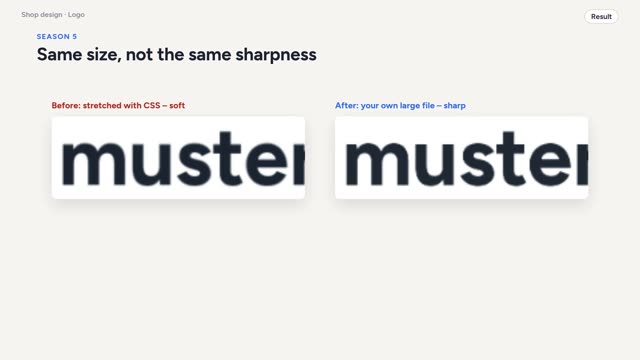 Video 1:27 min
Embedding a high-resolution logo
Why the logo gets blurry and how it stays sharp.
-
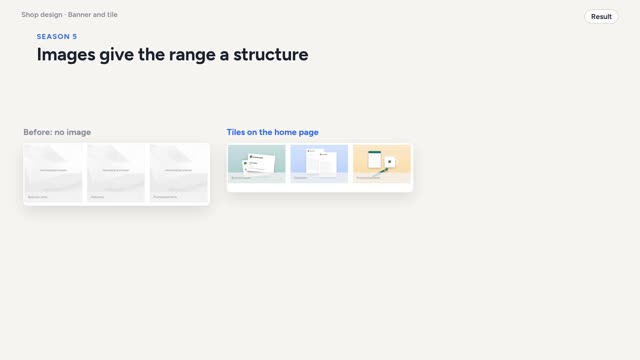 Video 1:26 min
Product groups with banner and tile image
Images that organize the product range and spark curiosity.
-
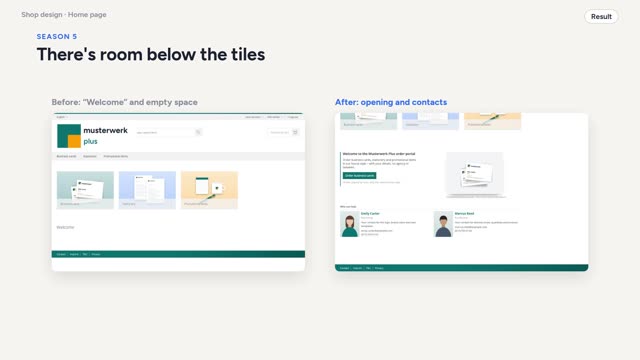 Video 1:37 min
Filling the home page with your own content
Instead of empty boxes: a welcome, notes and ways into the product range.
-
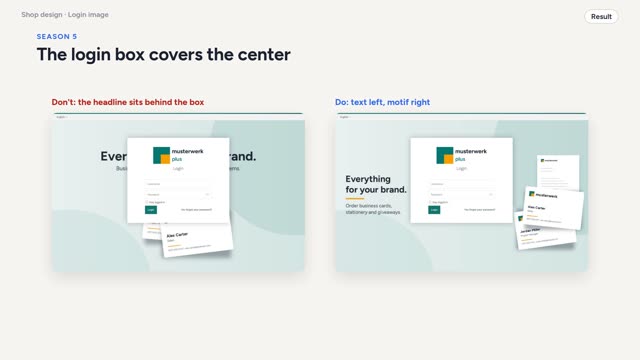 Video 1:12 min
Designing the login image
An image the login box doesn't cover.
-
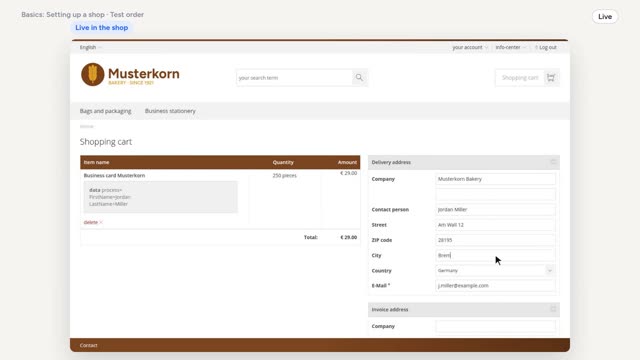 Video 1:43 min
Test order: checking the whole way as a buyer
Log in as a buyer, personalize, order – and see what arrives in the back end.
-
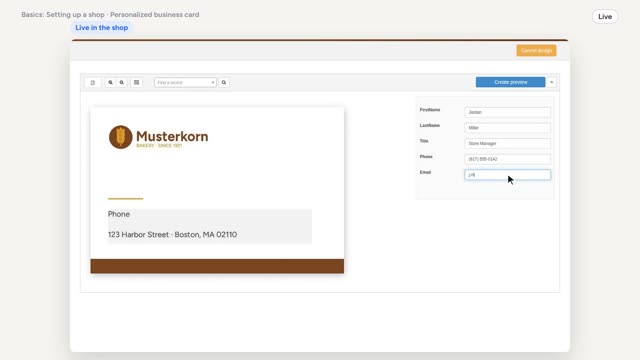 Video 1:24 min
Personalizable business card: database, template, item
Database, template and item plugged together: a personalizable business card in the shop.
-
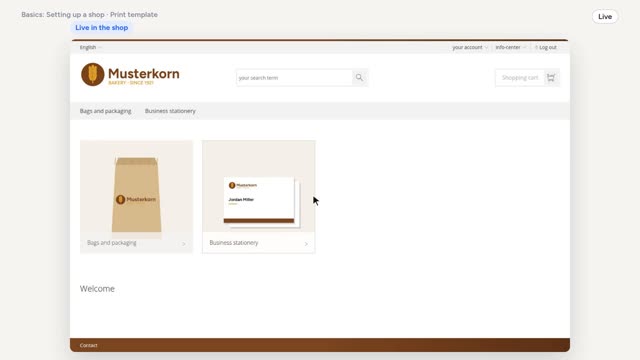 Video 1:43 min
Creating a print template: background PDF and text boxes
Background PDF in, boxes on top: this is how the template the buyer personalizes comes about.
-
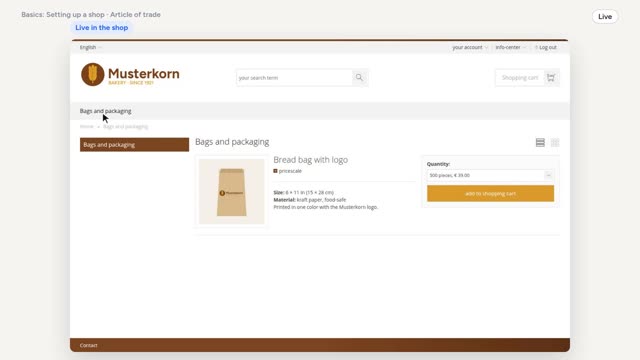 Video 1:33 min
Creating an article of trade with a price scale
A finished item that is simply ordered – with prices that drop as the quantity goes up.
-
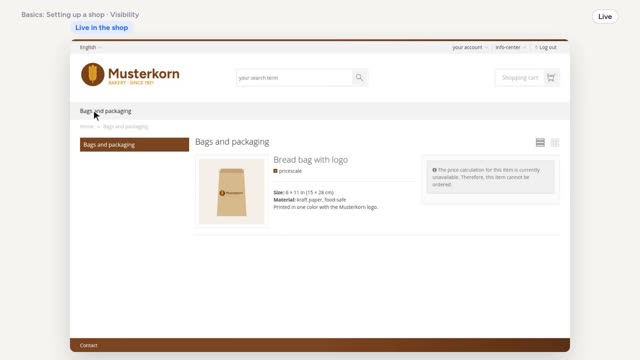 Video 1:24 min
Visibility: when an item appears in the shop
The shop is done, but empty? These four switches decide whether an item appears.
-
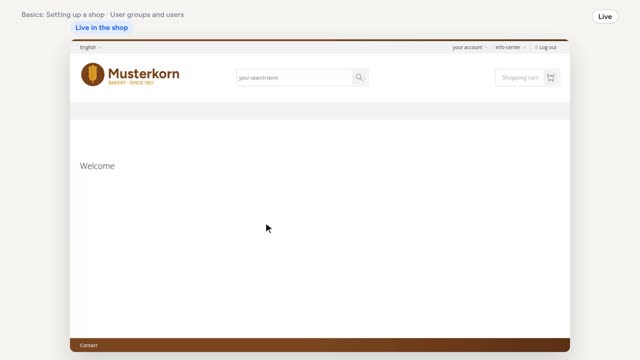 Video 1:26 min
Creating user groups and users
Who gets in, who sees what: create logins and sort them into groups.
-
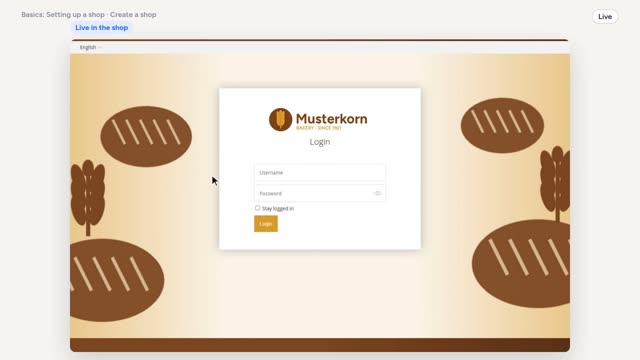 Video 1:47 min
Creating a shop: logo, colors, login image
The customer is created, and their shop gets its own look – from the logo to the login page.
-
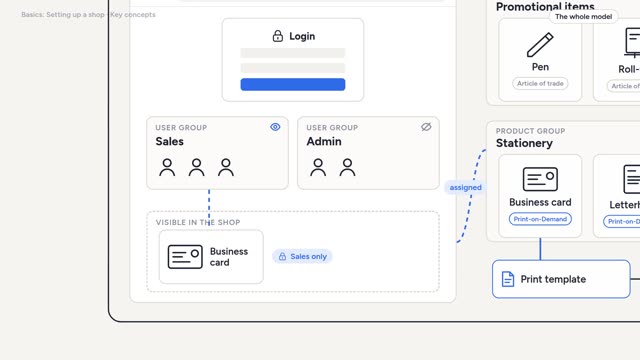 Video 2:48 min
Key concepts: client, customer, shop, item
Client, customer and shop, users in groups, product groups, items and print templates – the whole structure at a glance, before your first click.
In progress · 2 videos
These videos are being made. They will appear above as soon as they are ready.